
When lab results are not appearing in the EHR, the missing result may be delayed at the laboratory, rejected by an interface, held for a patient match, or delivered somewhere other than the expected chart or inbox. Refreshing the screen may not reveal where the handoff failed.
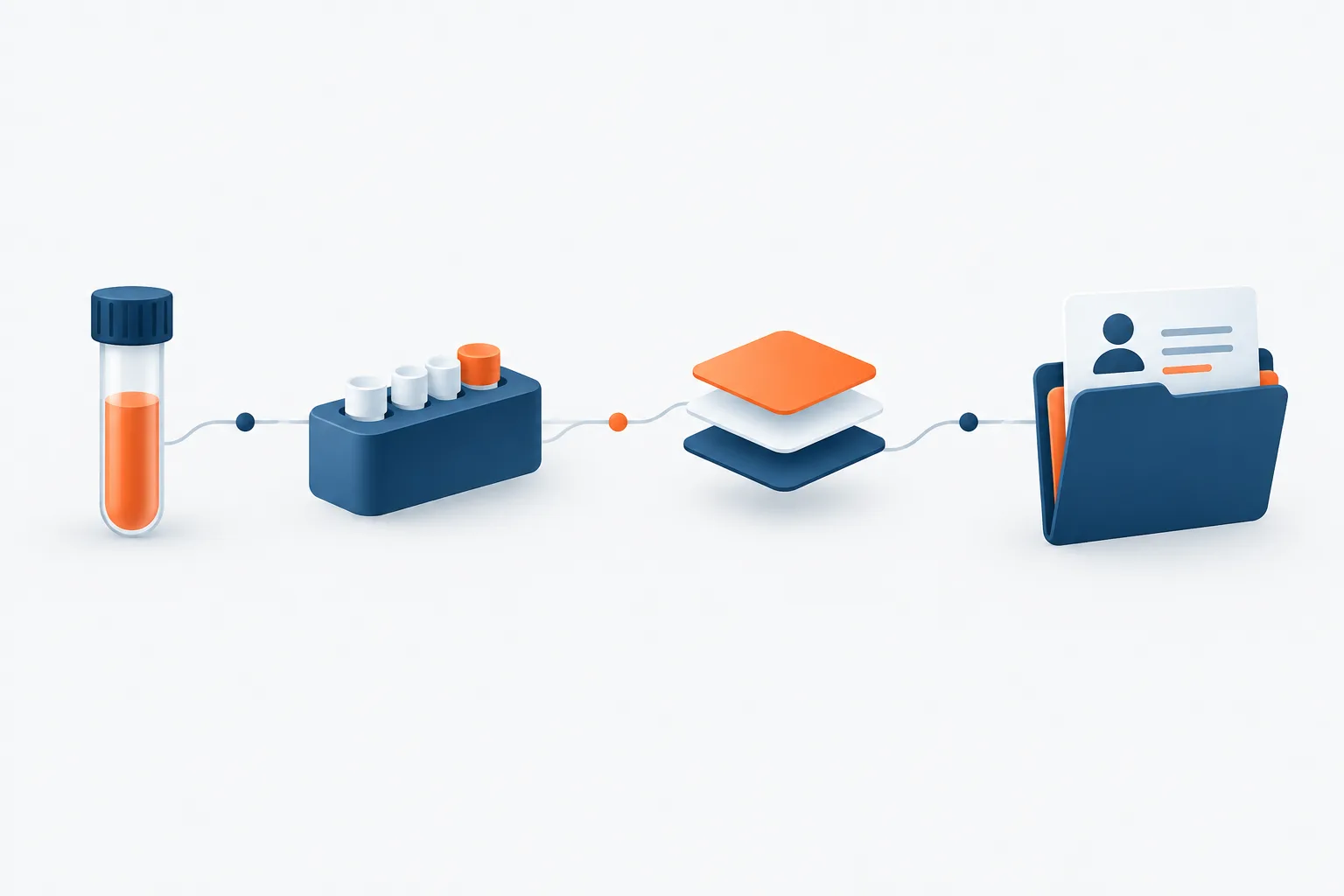
Trace the result from the original order through lab release, interface processing, and EHR routing. Avoid manually re-entering or scanning a result until staff have checked whether the original message is present elsewhere. That helps reduce the risk of duplicate or misfiled results.
Start with the order and patient details
Confirm that the test was ordered and that the order is associated with the intended patient and encounter. Compare the identifiers and demographics on the order with the information the laboratory received. A mismatch, such as a changed name or an incorrect identifier, can prevent a result from matching automatically.
Check the order or accession details, collection information, ordering clinician, and destination location against the lab’s record. Use your clinic’s approved process to verify patient identity, and handle patient information only through authorized systems and channels.
Also check whether the result is expected yet. A test may still be processing, may have been released in stages, or may be sent to a different destination than staff expect. Confirm the result’s status with the lab if the EHR gives no indication that it has arrived.
Confirm the laboratory released the result
If the result is available in the laboratory portal, note its status and compare the patient and order details with the EHR. If it is not available there, contact the laboratory using the clinic’s established contact path to ask whether the test is still pending, the result was released, or the order needs attention.
A result visible in a portal does not by itself confirm that the direct lab-to-EHR interface delivered it. In Jacksonville and Northeast Florida, a clinic may also check whether information is available through the Florida Health Information Exchange, if the organization has appropriate access. Exchange availability is a separate route to information, not proof that the clinic’s direct interface is working.
Check interface receipt and processing
If the laboratory confirms release, ask the person responsible for the interface or EHR to check whether the result message was received and processed. The exact tools and labels differ by system, but the useful distinction is whether the message was never received, was rejected, was held for review, or was accepted and routed.
- No message received: Check with the lab and interface support to determine whether the result was sent to the expected destination and whether a connection or delivery issue occurred.
- Rejected or failed: Review the error details with authorized technical support. The issue may involve message content, a destination setting, or a patient or order match.
- Unmatched or held: Look for a queue that requires staff to reconcile the result with a patient, order, or encounter. Follow clinic procedures before making a match.
- Accepted: Continue to chart and inbox routing. A message can be processed without appearing where the ordering clinician expects it.
For an HL7 lab results interface, technical staff may be able to use message status and error details to trace the transaction. Clinical staff should avoid changing interface settings or dismissing a failed message unless that is part of their assigned role.
For broader context on safer test-result workflows, staff and IT teams can consult the SAFER Guide for test results reporting and follow-up.
Look for unmatched results and routing problems
When a result has reached the EHR but is not in the expected chart, check the system’s unmatched-result or exception work queue, if one is available. Search using the clinic-approved identifiers and order details rather than relying only on a name search.
If the result appears to be matched, confirm the patient chart, encounter, ordering provider, location, and destination inbox. A result may be filed to the correct patient but routed to a different provider or work queue. Follow local procedures to correct a routing error and document the resolution.
If the patient or order information does not align, do not guess at a match. Pause and ask the appropriate clinical or technical owner to review it. A result attached to the wrong chart can create confusion and affect follow-up.
Avoid duplicate entries while resolving the issue
Before staff re-enter, scan, or import a result, establish whether the original result already exists in the portal, interface queue, another chart section, or an inbox. Check the result’s status and history with authorized support. If a manual entry is necessary under clinic policy, make sure the responsible staff know how to identify and reconcile the original transaction so that duplicate records are not mistaken for separate results.
Keep a brief record of the troubleshooting steps in the location your clinic designates. Include the order or accession reference, the relevant patient identifiers, collection and result dates, laboratory name, message status, any error text, and the intended EHR destination. Share these details through approved channels, not in an unsecured message.
Keep clinical follow-up moving
Technical troubleshooting and clinical follow-up are related but separate tasks. While the message is being traced, follow clinic policy for determining who is responsible for the result and how urgent or critical results are handled. Do not assume that fixing the interface automatically means a clinician has reviewed or acted on the result.
Once located, confirm that the result is in the correct chart, routed to the responsible clinician, and acknowledged or followed up according to clinic procedures. If an urgent result has not reached the responsible clinician, use the clinic’s established escalation process rather than waiting for the technical issue to resolve.
When to contact the lab, EHR vendor, or interface support
Contact the laboratory when release status, order details, or the intended destination is unclear. Contact the EHR vendor or interface support when a released result is missing from the interface, has an error status, or appears misrouted. Involve the clinic’s designated clinical lead when patient matching or result ownership is uncertain.
For support, prepare the order or accession reference, patient identifiers, dates, laboratory name, current message status, error text, and expected destination. Avoid sending more patient information than the support team needs through the approved channel.
If your clinic needs help assessing EHR connections and related technology operations, learn about EHR integration support. For broader safeguards around patient information, see these patient data protection practices.
Frequently asked questions
Why are lab results not appearing in the EHR?
The result may not have been released, may not have been sent to the expected destination, may have failed interface processing, or may be waiting for a patient or order match. It may also have been routed to another chart area or inbox.
How can staff tell whether a result is delayed at the lab or stuck in the interface?
Check the laboratory’s result status first. If the lab confirms release, ask authorized interface or EHR support to check receipt, processing status, and any rejection or unmatched-message queues.
What if the result is in the lab portal but not the patient chart?
Compare the order and patient details, then have the interface or EHR support team trace the message and review unmatched items and routing. A portal copy does not confirm that the direct interface delivered the result.
How can a clinic prevent duplicate results?
Locate the original message and check its status before manual entry. If a manual process is needed, follow clinic procedures for reconciling it with the original transaction.
Conclusion
Trace a missing result through the order, lab release, interface status, patient match, and final chart and inbox destination. Keep clinical follow-up active while the technical issue is investigated, and use clinic procedures before making a manual entry. Zevonix provides EHR support and healthcare IT services to providers in Jacksonville and Northeast Florida. To discuss an EHR issue, call (904) 658-0777.